
Bluetooth 4.2 vs 5.0: Which Version Fits Commercial Peripheral Bundles?
Post Author:
GetMI Team
Date Posted:
October 1, 2026
Share This:
For a tablet bundled with a wireless keyboard, barcode scanner, and mobile printer, choose Bluetooth 4.2 if the exact kit passes the project’s tests. Specify a particular Bluetooth 5.x configuration when an accessory requires a 5.x feature or the tested workflow benefits from one.
What Changes Between Bluetooth 4.2 and 5.0 for This Decision?
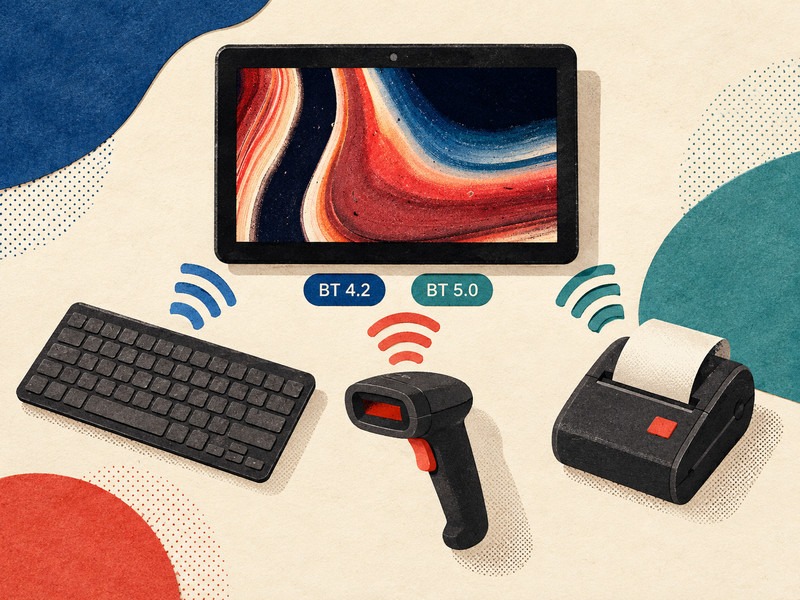
Bluetooth 5.0 added optional Low Energy (LE) 2M and LE Coded physical layers (PHYs). LE 2M can raise the radio’s raw data rate; LE Coded can improve range while lowering data rate. Both devices must support and use the relevant mode. These LE modes do not change a Bluetooth Classic connection, and neither predicts the finished kit’s working distance. HID input from a keyboard or scanner uses little bandwidth, so the higher LE 2M data rate rarely changes behavior for these accessories.
Which Peripheral Profiles Must the Tablet Support?
Check the connection profile for each accessory before selecting a Bluetooth version. A version mismatch matters less than a profile mismatch — a 5.0 tablet that does not support the accessory’s required profile will fail the same way a 4.2 tablet would.
Keyboard and Scanner Profiles
A keyboard or barcode scanner may use the Human Interface Device (HID) profile over Bluetooth Classic or HID over GATT on Bluetooth LE. Some scanners use a vendor app or a different data mode. Ask the scanner supplier for the exact mode.
Printer Transport and App Integration
A mobile printer needs an app-supported path for print commands. Confirm the printer’s Bluetooth transport, profile or service, driver or SDK, and command language with its supplier. Pairing alone does not prove that the app can print.
How To Identify Each Accessory’s Connection Mode
Not every accessory data sheet states the Bluetooth profile clearly. Check these items before placing the accessory on the RFQ:
- The listed profile on the data sheet or spec page: HID, SPP, GATT service, or vendor-specific.
- Whether the accessory requires a companion app, driver, or SDK on the tablet.
- Whether the accessory falls back to a different profile or mode when connected to a Bluetooth 4.2 host instead of a 5.x host.
- Whether the accessory advertises on LE only, Classic only, or both (dual-mode).
If the supplier cannot confirm these details, request a test unit and verify the connection behavior on the intended tablet model and OS build.
Simultaneous Connection Limits
A three-accessory kit — keyboard, scanner, and printer connected at the same time — requires three active Bluetooth connections. The number of simultaneous connections the tablet can maintain depends on the Bluetooth controller and the OS stack, not on the Bluetooth version. A 5.0 module does not automatically support more concurrent connections than a 4.2 module.
Ask GetMi for the supported active connection count on the selected model and OS build. Confirm with each accessory supplier that its device can stay connected while the other peripherals are active.
Which GetMi Models Match the Version Requirement?
GetMi’s June 2026 catalogs list the following Bluetooth versions. The catalogs do not identify compatible keyboard, scanner, or printer models.
| GetMi Host | Catalog Bluetooth Entry |
|---|---|
| Lite 10A tablet | 4.2, 5.2, or 5.4 (buyer selects at order) |
| Pro 10A tablet | 4.2, 5.2, or 5.4 (buyer selects at order) |
| Pro 11 tablet | 5.0 |
| TK-E100W Windows tablet | 5.0 |
Bluetooth 5.2 and 5.4 include all 5.0 features; the version listed in the catalog determines the module in the build. The Lite 101 has Bluetooth 4.0 and falls outside this 4.2-versus-5.0 selection.
Android and Windows Bluetooth Stack Differences
The model table includes both Android tablets (Lite 10A, Pro 10A, Pro 11) and a Windows tablet (TK-E100W). Android and Windows handle Bluetooth profiles, pairing prompts, and HID input through different OS stacks. A keyboard or scanner that pairs and works on an Android build may need a different pairing mode, driver, or app configuration on Windows — or may not work at all.
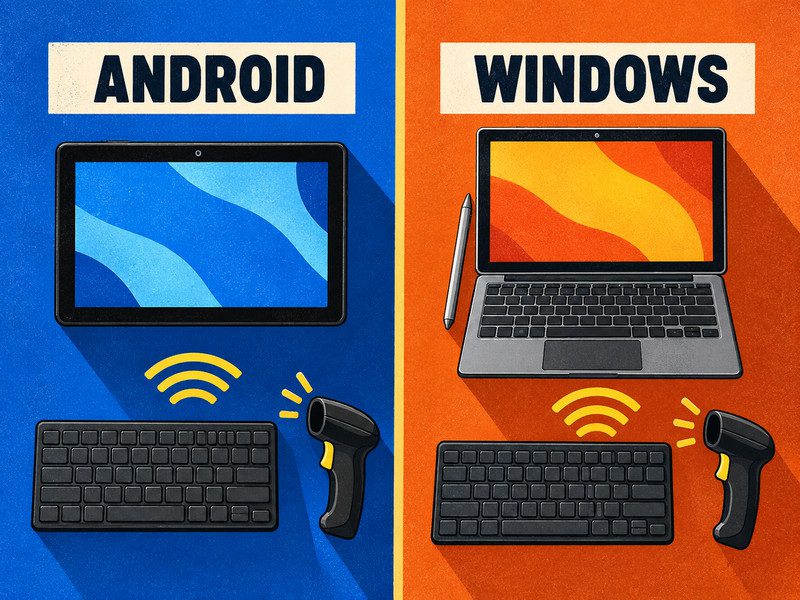
Test each accessory on the actual OS and software build, not just on a tablet with the same Bluetooth version. If the project requires both Android and Windows hosts, run separate acceptance tests for each OS.
How Should You Test the Complete Bundle?
Before testing, set acceptance criteria for missed input, wake time, print completion, and disconnections. Bluetooth and 2.4 GHz Wi-Fi share the same radio band, so include a coexistence step — the tablet’s radio design and channel plan affect how Bluetooth and Wi-Fi perform together under load.
Run the test in a wireless environment that matches the deployment site:
- Pair the production tablet with each intended accessory model.
- Send uninterrupted keyboard input and back-to-back scans into the actual app fields.
- Print from the app.
- Let each accessory sleep, then check its first input after wake.
- Repeat at the required distance with Wi-Fi traffic running on the 2.4 GHz band.
- Confirm that all three accessories stay connected and respond during the same session.
Record the tablet software build, accessory firmware version, Wi-Fi band, distance, obstacles, and results. If the kit fails, check the accessory’s connection mode and app integration as well as the tablet radio.
Lock Firmware Versions Between Sample and Production
Accessory firmware can change between sample approval and the bulk shipment. A firmware update from the accessory supplier may alter pairing behavior, power management, or profile support — and break a configuration that passed the sample test.
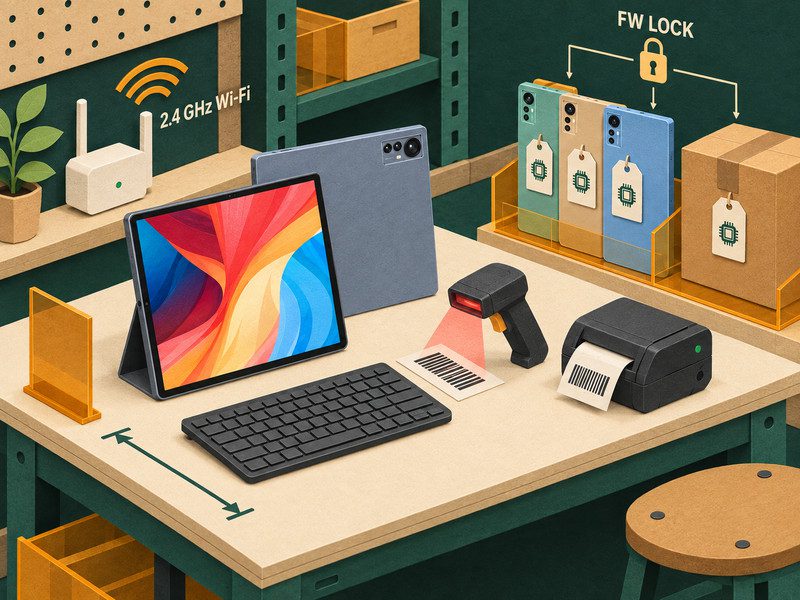
Lock each accessory’s firmware version in the purchase specification. If the supplier ships a different firmware build in production, retest the full kit before accepting the batch.
What Should the RFQ Lock Down?
For a custom tablet build, name the GetMi model and listed Bluetooth option. Identify each accessory by exact model and firmware, along with its connection profile or service, operating-system and app build, and any driver or SDK.
Include the following in the specification:
- GetMi tablet model, OS build, and selected Bluetooth version.
- Each accessory’s model, firmware version, and confirmed connection profile or service.
- Required simultaneous connection count.
- App or SDK version and any required driver.
- Acceptance test procedure with pass/fail criteria.
Attach the acceptance test and require the quote to state the selected version rather than an unspecified “Bluetooth 5.x” configuration.
With those inputs set, contact GetMi to request a sample matching the quoted configuration before approving a bulk order.
FAQs
Can a Bluetooth 5.0 Keyboard Pair With a Bluetooth 4.2 Tablet?
Yes, if the keyboard offers a compatible mode and HID profile that the 4.2 tablet supports. Check the keyboard’s stated host requirements and test typing in the app.
Does a 2.4 GHz USB Dongle Use the Tablet’s Bluetooth Radio?
No. A proprietary 2.4 GHz USB receiver uses the tablet’s USB connection, not its Bluetooth radio. Confirm USB support and app behavior for the intended tablet.
Can the Printer Use Wi-Fi While the Keyboard and Scanner Use Bluetooth?
Yes, if the printer and the app support Wi-Fi printing. Specify the printer’s network connection and print integration separately, then test printing while the keyboard and scanner send Bluetooth input.
Can a Software Update Change a Bluetooth 4.2 Tablet to 5.0?
A software update alone does not establish Bluetooth 5.0 support, because the version depends on the radio module’s hardware and firmware. Ask GetMi to confirm the model’s radio hardware before changing the RFQ.