

Portable Monitor Setup: HDMI, Power, and No-Signal Checks for Distributors
Post Author:
GetMi Team
Date Posted:
August 11, 2026
Share This:
Two conditions make a portable monitor show a picture: the source device sends video through HDMI or USB-C, and the monitor receives enough power to run the panel. One USB-C cable with DisplayPort Alt Mode covers both. HDMI carries video and audio, not power, so a monitor on HDMI needs a separate feed: a second USB-C cable or the included adapter.
Distributors who document one setup path per SKU reduce support calls and returns. GetMi publishes the port map and included cable list for each portable monitor model, so the steps below match what ships in the retail box.
How Do You Set Up a Portable Monitor With HDMI or USB-C?
Pick the connection by the source device. Devices with DP-capable USB-C work with one cable. Other devices need HDMI for video plus a separate power feed.
HDMI Video and Power Setup
- Plug the video cable into the source device’s HDMI output.
- Match the monitor end. Portable monitors commonly use a mini HDMI input, so the box includes an HDMI to mini HDMI cable. When a cable or adapter is missing, the port and direction matter more than the brand: HDMI vs Micro HDMI explains how to identify the connector before ordering spares.
- Power the monitor separately. Plug the second USB-C cable into the monitor’s power input and connect it to the included 5V/2A adapter or a source USB port that can deliver the same current.
- Switch the monitor’s input source to HDMI in the on-screen menu. Most panels remember the last input, but a fresh unit may default to USB-C.
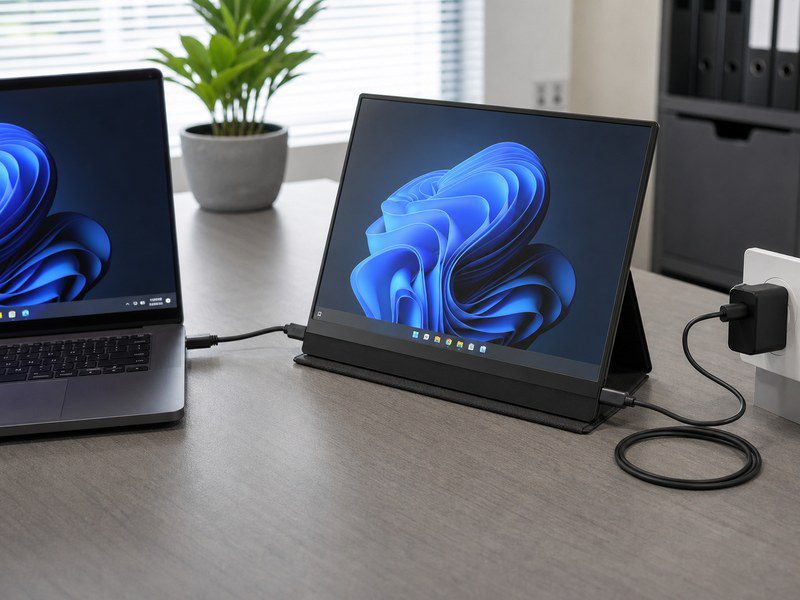
A monitor that shows “no signal” on HDMI often has a working video path with no power reaching the panel. Check the panel backlight before touching the cable.
USB-C Video and Power Setup
A USB-C connection is single-cable only when the source port supports DisplayPort Alt Mode. Laptops often mark this port with a DisplayPort symbol, but the spec sheet or a live test settles it.
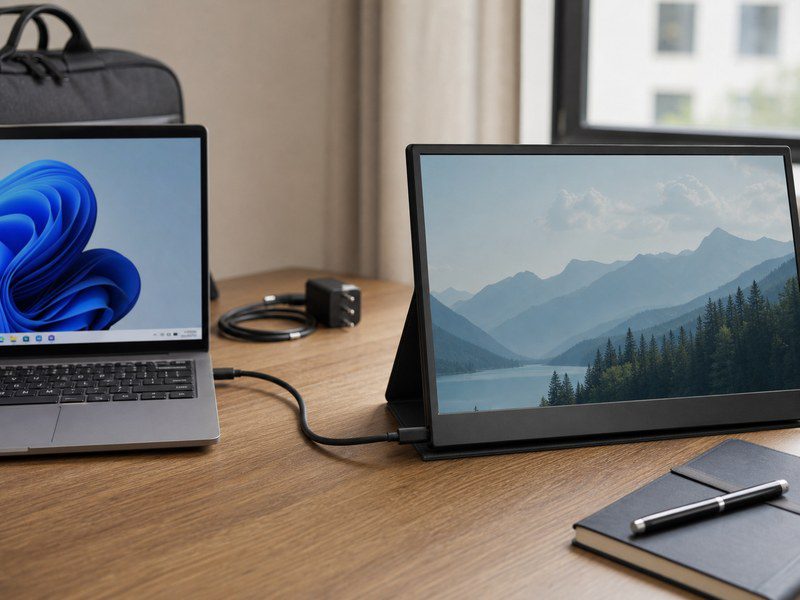
The GetMi P156 portable monitor shows the typical port layout: two Type-C ports, one for data and video, one for charge, plus a mini HDMI input. Connect the source device to the data port first. When the source USB-C port cannot deliver enough current, add the second Type-C cable to the charge port with the included adapter. The single-cable setup becomes a two-cable setup with the same video path.
Phones need the same DisplayPort Alt Mode support. A phone that only charges over USB-C cannot drive the panel, so use the HDMI path or a phone with DP output.
Display Mode Selection
The source decides how to use the second screen. Windows shows the options with Win+P: Duplicate, Extend, or Second screen only. macOS mirrors by default and switches to extended mode in System Settings.
For setup testing, extend the desktop first and confirm the monitor shows a separate image at its native resolution. Duplicate mode hides resolution differences, so it is a poor check for a panel that runs 1920 by 1080.
How Do You Fix a Portable Monitor With No Signal?
Work in order: power, input source, cable, source output. Most no-signal cases trace to the first two checks, and both are free.
Power and Input Source Check
Look at the backlight and the power indicator first. A panel with no backlight and no indicator light is not getting power. Portable monitors commonly take 5V/2A input; a 5V/1A charger or a shared USB port may power the board but not the backlight, so the screen stays dark or flickers. Use the included adapter, then move to the input source.
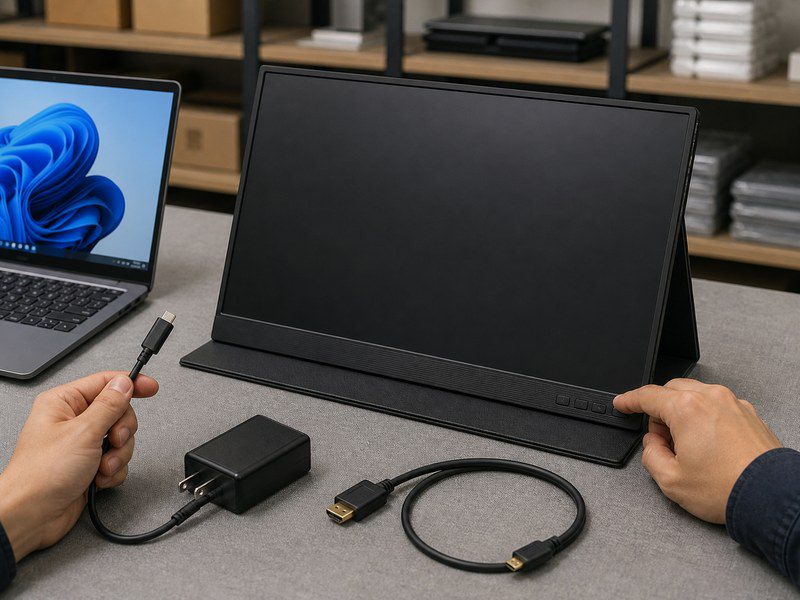
The on-screen menu shows the active input. If the monitor stays on USB-C while the source sends HDMI, the screen reads no signal. Switch the input, and the image appears without any cable change. The same check covers a second case: the cable connected while the monitor was off, so the panel never detected it.
HDMI Signal Path
When power and input source check out, test the HDMI path. Reseat both ends of the cable and confirm the connector matches the port: standard HDMI on the source, mini HDMI on the monitor where the model uses it. Damaged or half-seated connectors cause intermittent signal, which reads as a no-signal fault.
Resolution also depends on the cable and port generation. A 4K panel needs a cable and source port with enough bandwidth; HDMI 2.0 vs 2.1 covers how port versions set resolution and refresh limits. When the source outputs a resolution the monitor cannot accept, Windows may fall back or show nothing. Lower the source resolution to the monitor’s native 1920 by 1080 and test again.
USB-C Video Capability
A no-signal state on USB-C usually means the source port does not send video. Charge-only USB-C ports are common on business laptops. Check the port symbol, then the spec sheet, then swap to the HDMI path as the working fallback. Power is the second suspect: a source that cannot deliver enough current leaves the monitor dark even with a valid video signal. Connect the monitor’s power input to the included adapter and retest.
Sleep and Reconnection Recovery
Laptops that sleep with the monitor attached often fail to redetect the panel after waking. The recovery order: unplug and replug the video cable, switch the input source away and back, then press Win+P to redetect. This sequence resolves most wake-up no-signal cases without a reboot.
Write this sequence into the support script. A distributor who coaches this cable and input routine first resolves the call before a unit ships back.
What Should Distributors Verify Before Shipping Portable Monitors?
The setup and recovery checks above are the pre-ship test. Run them per model, per source type, and fix the accessory pack and instructions before stock leaves the warehouse.
Source-Device Test Matrix
Test every monitor SKU against the source devices your customers actually own. The matrix below covers the common classes; add local-market devices as your sales data shows them.
| Source device | Video path | Power path | Pass check |
|---|---|---|---|
| Windows laptop with DP-capable USB-C | USB-C data port | Same cable or charge port | Extend mode shows native resolution |
| Windows laptop, HDMI only | HDMI to mini HDMI cable | USB-C power or adapter | Image stable for 30 minutes |
| MacBook | USB-C data port | Same cable | Native resolution and sound path |
| Android phone with DP support | USB-C data port | Same cable | Image mirrors, touch not required |
| Game console | HDMI to mini HDMI cable | Adapter | Image and audio through panel speakers |
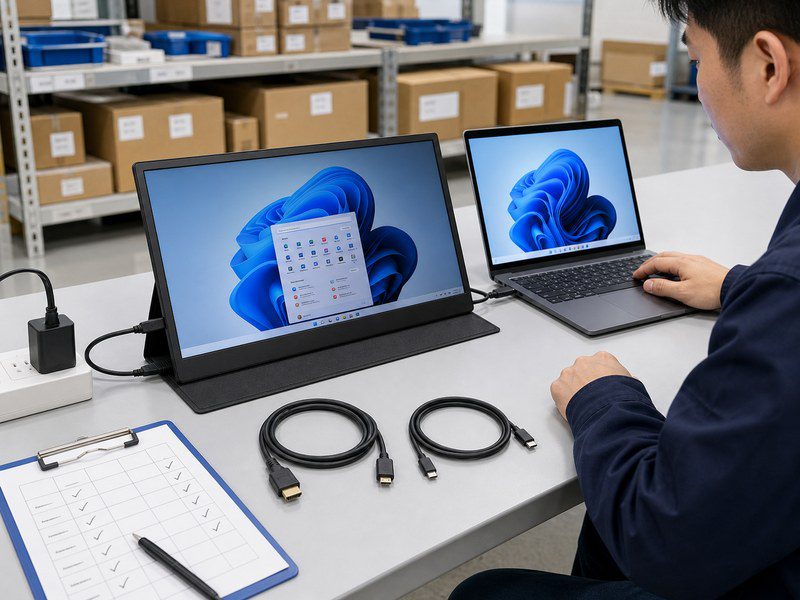
Record the result per model in the QC sheet, and keep one reference unit per SKU at the support desk. The reference unit turns “is it the monitor or the source” calls into a 2-minute test. Build the matrix against the models in your portable monitor range before quoting new SKUs.
Approved Connection Kit
Fix the accessory list per SKU and lock it. A monitor that passes sample testing with one cable can fail in the field when the retail box holds a different cable or a weaker adapter. GetMi portable monitor kits list an HDMI to mini HDMI cable, a Type-C to Type-C cable, and a 5V/2A power adapter. Confirm the same list on the quote, the sample approval sheet, the manual, and the outer carton. Require written approval before any substitute.
Retail Setup Instructions
Put a three-step setup card in the box: connect video, connect power, pick the input. Match the card language to the destination market and show the cable direction in a picture. Setup cards reduce first-contact support calls and returns. Keep the card text identical to the manual so support staff answer from the same source.
Support Intake and Escalation
Standardize the first support pass: power light, input source, cable reseat, Win+P redetect. Escalate when the monitor fails these steps with the approved kit and a reference source device. That combination points to a unit fault.
Track no-signal complaints per model and per cable revision. A pattern across one batch signals a QC or accessory issue before it becomes a return wave. That data feeds the next wholesale portable monitors buying decision.
FAQs
Does a Portable Monitor Need a Driver?
Video output from a portable monitor is plug and play on Windows, macOS, Android, and most current systems; the panel shows an image without a driver. Some models load a small driver or utility for touch, rotation, or brightness control. Check the model page before quoting: a driver requirement only matters when the feature list includes it.
Does Touch Work When a Portable Monitor Uses HDMI?
No. Touch data travels over a USB data link, and an HDMI cable carries only video and audio. A touch portable monitor works with touch when the source connects through a USB-C data port that also carries the touch channel. Over HDMI, the same monitor shows video but ignores touch.
Why Is There No Sound From a Portable Monitor Connected by HDMI?
Two faults block HDMI audio. The source may keep sending sound to its own speakers, so switch the audio output device to the monitor in system sound settings. The monitor itself may have no speakers, so check the spec before promising sound. The GetMi P156 lists built-in speakers and an audio port, which covers the second case for that model.
Can an HDMI Output Connect to a USB-C Portable Monitor Input?
Yes, with the right adapter or port. A portable monitor with a mini HDMI input takes the HDMI output directly through the included HDMI to mini HDMI cable. A monitor with only USB-C inputs needs an HDMI to USB-C adapter that converts video, and the adapter must supply or pass power. Confirm the input ports on the exact model before ordering cables.
Can a Portable Monitor Be Used in Portrait Mode?
Yes. Some portable monitors rotate the image automatically with a G-Sensor when you turn the panel; others rotate through the operating system display settings. Windows and macOS both support a portrait orientation per display. Portrait mode is a common last-minute buyer question, so confirm the rotation method on the model page and mention it in the retail card.