

How to Clean a Computer Screen: A Device Fleet Maintenance Guide for Schools and Offices
Post Author:
GetMI Team
Date Posted:
September 16, 2026
Share This:
The safest way to clean a computer screen is to turn off and unplug the device, remove loose dust with a clean microfiber cloth, and use only the screen-specific method approved by the device manufacturer for any remaining marks. Schools and offices should keep that approved method in the device record, since a cleaner allowed on one display may damage another.
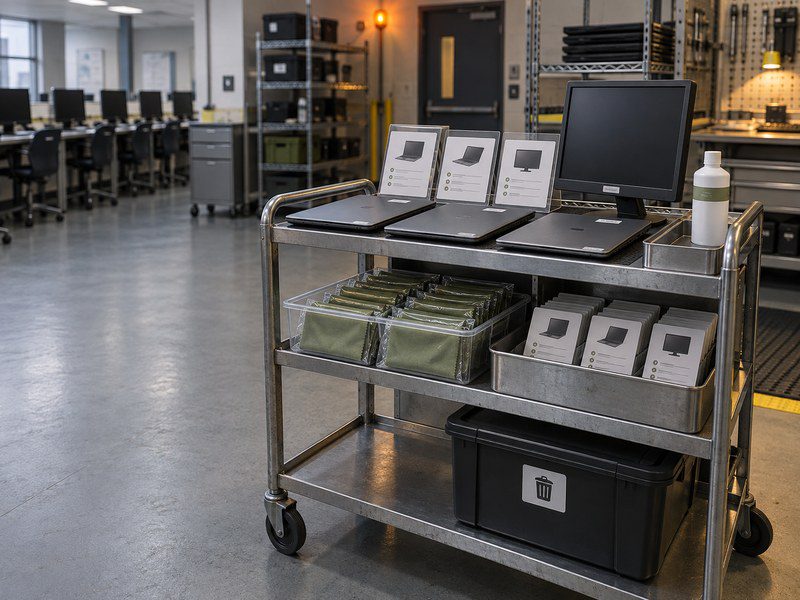
A fleet procedure also needs a clear stop rule. Custodial crews, classroom teachers, and office employees should send cracked screens, liquid intrusion, damaged coatings, and changing image or touch behavior to IT instead of applying more liquid or pressure.
What Should You Use to Clean a Computer Screen?
Start with a clean, dry microfiber or soft lint-free cloth. A dry cloth is enough for loose dust and fingerprints, giving IT and facilities teams the lowest-risk first step.
If marks remain, check the manufacturer’s instructions for the exact device or display. Depending on the model, the approved option may be a cloth lightly dampened with water, distilled or purified water, a named screen cleaner, or a limited isopropyl alcohol solution. A bottle sold as a computer screen cleaner still needs model-specific approval.
Keep clean and used cloths separate. A cloth that has picked up grit, desk cleaner, or oily residue can spread contamination or mark the panel. Store approved supplies in a dedicated kit so custodial crews do not reach for paper towels or general-purpose cleaners.
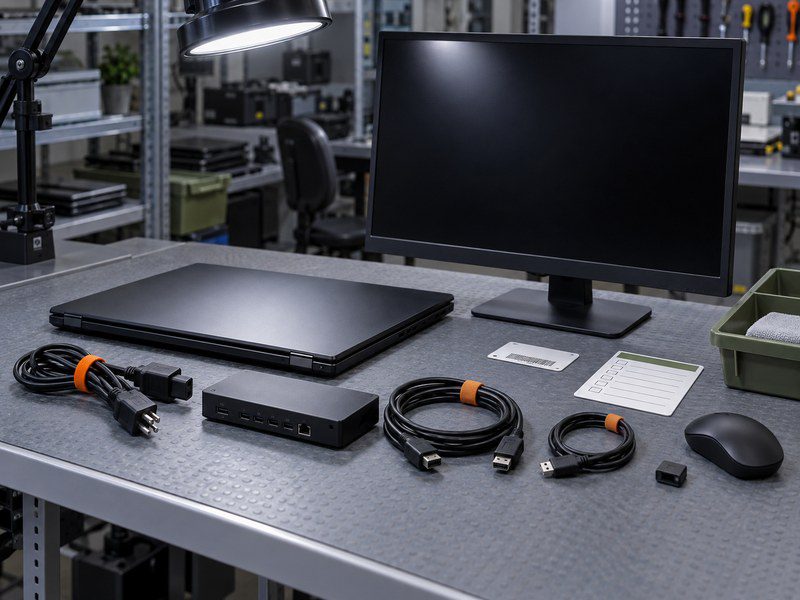
How to Clean a Laptop Screen or Monitor Safely
Use the same sequence for every cleaning job, then follow the model-specific liquid rule recorded by IT.
- Identify the device model and check its approved care instructions. If the model or display finish is unknown, use a dry cloth only and refer the device to IT.
- Shut down the computer or monitor. Unplug power, docks, display cables, and connected accessories.
- Inspect the screen under good light. Do not continue if the panel has a crack, separates from the frame, is wet around the bezel, or shows image changes.
- Use a clean, dry microfiber cloth to lift loose dust. Wipe gently and avoid pressing on one small area.
- If residue remains and the manufacturer permits damp cleaning, apply a small amount of the approved liquid to the cloth. The cloth should be slightly damp, with no drops or runoff.
- Wipe the screen with light pressure. Keep moisture away from the bezel, camera, speakers, buttons, ports, and ventilation openings.
- Use a second dry cloth to remove remaining moisture or streaks. Let the screen dry fully before reconnecting power and checking the display.
Microfiber cloth cleaning laptop screen](https://getmilaptop.com/wp-content/uploads/2026/09/03-microfiber-screen-cleaning-dry-first.jpg "03 microfiber screen cleaning dry first")
Clean the screen separately from the keyboard, case, stand, and mouse. A chemical approved for an outer enclosure or keyboard may still be unsuitable for the display surface.
What Can Damage a Computer Screen During Cleaning?
Direct spray, abrasive materials, excess pressure, and unapproved chemicals create the main avoidable risks. Liquid can reach the bezel or other openings before a custodial crew can wipe it away. Paper towels, rough cloths, and dirty microfiber can mark the panel, while scrubbing a hardened spot can damage the surface. Glass cleaner, household cleaner, bleach, hydrogen peroxide, ammonia, hand sanitizer, and disinfectant wipes all need model-specific approval before they touch a display.
Do not copy a cleaning formula from another brand or model. Recheck the approved damp-cleaning method when residue does not lift, and send the device to IT when the correct method is unclear. Compressed air also needs model-specific care. Keep it out of a general screen-cleaning procedure unless the device instructions expressly allow its use.
How Should Schools and Offices Standardize Screen Cleaning?
A safe fleet program can standardize roles, supply storage, and exception reporting. The approved liquid and disinfectant rule should remain tied to each device family.
| Fleet Control | Required Record |
|---|---|
| Device Inventory | Brand, model, display type if documented, asset tag, and official care source |
| Approved Method | Dry cloth rule, permitted liquid, prohibited chemicals, and drying steps |
| Cleaning Kit | Cloth type, approved bottle label, issue date, and storage location |
| Operational Role | Power-down steps, cleaning boundary, and escalation contact |
| Exception Log | Spill, crack, coating change, image fault, touch fault, or unknown residue |
Set Cleaning Frequency by Use
Build the procedure around actual use. Shared touchscreens may need attention more often than a monitor assigned to one employee, while a dusty lab may need a different inspection schedule from a clean administrative office. Set the interval from visible soil, touch frequency, local hygiene policy, and the device maker’s care limits instead of copying a universal weekly or daily rule.
Separate Cleaning From Disinfecting
Cleaning removes dust, oil, and residue. Disinfecting uses a product and contact process intended to reduce pathogens. IT and facilities teams should approve disinfectant use only when the display manufacturer permits the product on the exact surface and the organization’s hygiene policy requires it.
Assign Classroom and Custodial Ownership
For a school deployment, assign ownership before devices enter classrooms. The team choosing touchscreen laptops for teachers should decide who cleans touch surfaces, which method applies, and where teachers or custodial crews report scratches and touch faults.
How Should Screen Care Affect Device Procurement?
Add screen care to the sample review before a full fleet reaches users. School district procurement officers and corporate IT directors should ask each supplier for the care instructions that apply to the proposed screen and record any restrictions on liquids, disinfectants, cloths, or pressure.
Test the Approved Method on a Sample
For a bulk laptop program, test the approved cleaning method on the sample unit using the same cloths and supplies planned for custodial or facilities teams. Inspect the screen after it dries, then keep the approved method with the model, configuration, and asset documentation.
Apply the same check to portable monitor fleets. Portable displays move between bags, desks, meeting rooms, and users, so the handoff kit should keep the cleaning cloth away from cables, loose debris, and leaking containers.
Record Screen Care for Repeat Orders
GetMi supports practical laptops, tablet PCs, portable monitors, and supplemental all-in-one PCs for B2B projects. During the OEM/ODM process, school district procurement officers, corporate IT directors, and B2B tender contractors can discuss device configuration, logo, software, packaging, sample prototyping, testing, and trial orders. Add the screen-care method to the sample approval record and ask GetMi to confirm the instructions for the selected display before mass production.
Do not approve a fleet from a generic display label alone. The procurement record should name the exact proposed model or panel specification, the official care source, the approved sample, and the operating procedure. If the display changes before a repeat order, review the cleaning method again.
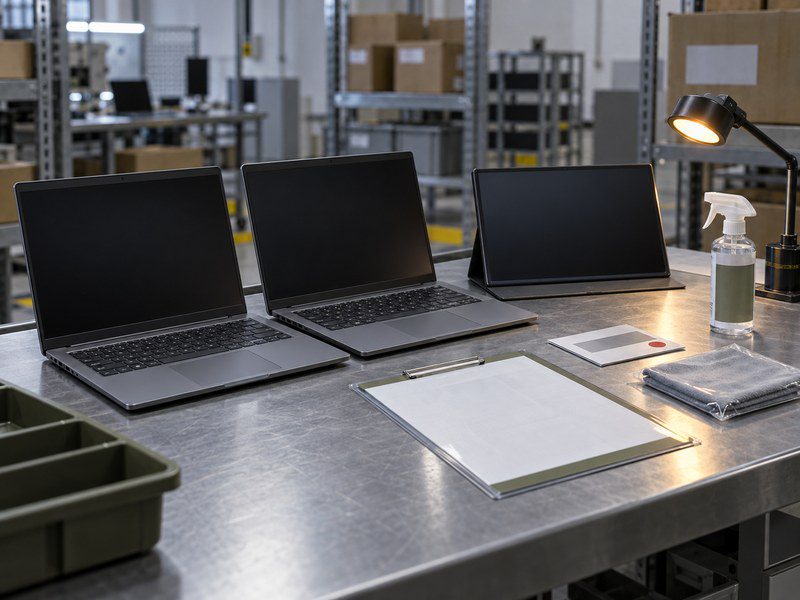
When Should Custodial Crews and Office Teams Escalate a Device?
Stop cleaning when the condition may involve physical damage, internal liquid, a coating problem, or a display fault rather than removable dirt.
- A crack, chip, lifted edge, or gap appears in the panel or bezel.
- Liquid reaches an opening or remains visible under the screen surface.
- The image flickers, changes color, develops lines, or shows a pressure mark during cleaning.
- Touch input becomes inaccurate or stops responding after the device dries.
- A cloudy patch, discoloration, or surface change grows with additional wiping.
- Sticky or unknown contamination does not lift with the approved method.
- The device model or permitted cleaning method remains unknown.
Tag the device, disconnect it when safe to do so, and send it to the responsible IT or repair channel. Record the substance used and the steps already taken so the technician does not repeat the same exposure. When the same coating, liquid-entry, or handling problem recurs across the fleet, procurement teams should carry that record into the next sample review and supplier discussion.
Frequently Asked Questions
Can Custodial Crews Reuse a Microfiber Cloth Across Shared Devices?
Custodial crews may reuse a microfiber cloth when the cloth maker’s care instructions and the organization’s hygiene policy allow it. Remove a cloth from service when it is visibly soiled, has touched an unapproved chemical, or may carry grit. Keep used cloths separate from clean supplies, launder them as directed, and let them dry fully before reuse. A cloth that is safe for screen cleaning is not automatically suitable for a required disinfection process.
Should Students Clean Their Own Laptop Screens?
Students may clean screens within a written school procedure that limits the task to age-appropriate, device-safe steps. A dry microfiber wipe may be suitable when the school permits it. Teachers, custodial crews, and IT teams should control liquid products, unidentified residue, spills, and damaged devices so students do not have to judge chemical compatibility or electrical risk.
What Should Teachers or Custodial Crews Do After Spraying Cleaner Directly on a Screen?
Turn off and disconnect the device, then stop routine cleaning. Blot visible liquid with a clean lint-free cloth without pressing liquid toward the bezel. If moisture reached an opening, remains under the panel, or changed the image or touch response, tag the device and send it to IT before anyone reconnects power. Record the product used.
Does a Screen Protector Need the Same Cleaning Method as the Display?
Follow the screen protector manufacturer’s care instructions for the exposed surface. A protector can use a different material or coating from the display below it. If the protector lifts, traps moisture, or becomes cloudy, replace or inspect the accessory instead of applying more pressure or a stronger cleaner. After removing a protector, return to the device manufacturer’s instructions for the bare display.
Can Cleaning Remove a Cloudy Patch or Damaged Anti-Glare Coating?
Cleaning cannot restore a coating that has peeled, discolored, or chemically changed. If the approved dry or damp method does not change the mark, or the cloudy area grows while wiping, stop and ask IT or the manufacturer to inspect it. Additional rubbing or a stronger chemical may make surface damage worse.