

How Do I Reset the BIOS: Steps for Business Device Maintenance
Post Author:
GetMi Team
Date Posted:
June 25, 2026
Share This:
A BIOS reset can fix startup or hardware detection issues, but business teams should treat it as part of a documented maintenance process. It may change boot order, security settings, storage behavior, and device access, so preparation matters before any reset. If you are asking “how do I reset the BIOS” for one laptop or a full batch of computers, start by recording current settings, protecting data, and using the safest reset method available in firmware. In school labs, office fleets, reseller batches, and IT deployment projects, reset BIOS only when the issue is clear, then test the device before it goes back into use.
When a BIOS Reset Makes Sense
A BIOS or UEFI reset restores firmware settings to default values. It is useful when a device starts behaving differently after configuration changes, hardware replacement, or a failed setup attempt. Before resetting anything, confirm the problem is likely firmware related rather than a damaged drive, failed battery, or operating system issue.
Boot Order or Startup Problems
A reset can help when a computer keeps trying to boot from the wrong drive, USB device, or network option. This often happens after a deployment image, drive replacement, or manual boot menu change. For business devices, record the intended boot source before resetting so the unit can return to the correct workflow after restart.
Hardware Changes Causing Conflicts
New memory, storage, docking equipment, or internal repairs can sometimes leave firmware settings out of sync with the actual device state. Resetting BIOS may force the system to redetect hardware and clear a bad configuration. If the same conflict appears on multiple units, check whether the issue is model specific before applying the same fix to a full batch.
Incorrect Firmware Settings
Firmware settings can affect Secure Boot, virtualization, TPM, ports, storage mode, wake behavior, and network boot. A single incorrect setting may stop deployment tools, encryption, or peripheral connections from working as expected. A BIOS reset is reasonable when the original setting is unknown and manual correction would take longer than returning to a clean default state.
Cases That Need Service Support
Do not rely on a BIOS reset when the device shows physical damage, repeated power failure, liquid damage, abnormal heat, or signs of a failed motherboard. These symptoms need service review because a reset cannot repair hardware. If the device is under a business support plan, document the issue first so the service team can match the reset history with the repair case.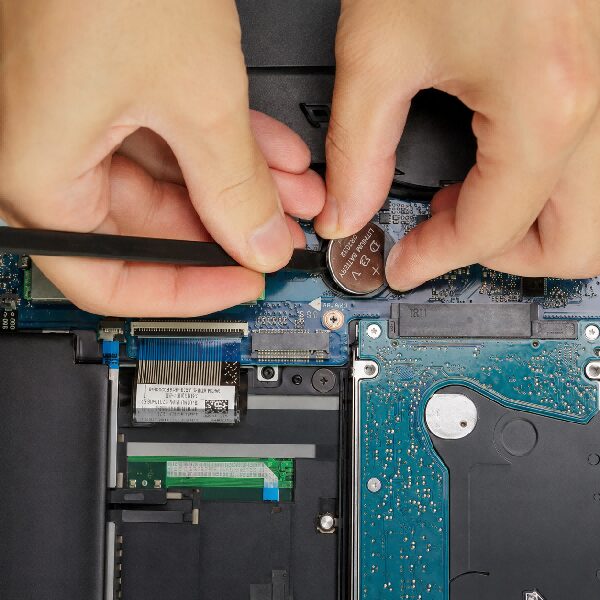
What to Check Before Resetting BIOS
Preparation matters more when devices are shared, encrypted, or managed by an IT team. A reset may be simple on one laptop, but it can create access problems when repeated across school labs, office fleets, or reseller inventory. Use the checklist below before changing firmware settings.
| Check | What to Confirm | Risk If Skipped |
| Firmware settings | Boot order, Secure Boot, storage mode, ports, and virtualization | The device may restart with the wrong setup |
| Power status | AC adapter, battery level, and stable connection | The reset process may be interrupted |
| Business data | Key files, user profiles, and deployment records | Later recovery may take longer |
| IT access | Admin approval, BIOS password, and encryption recovery key | The device may become hard to access |
This table should be used as a maintenance checkpoint, not as a substitute for internal IT policy. For managed devices, keep the record with the service ticket or deployment file.
Record Current Firmware Settings
Before resetting BIOS, take photos or written notes of the key screens inside BIOS or UEFI setup. Focus on settings that affect deployment and access, such as boot order, Secure Boot, storage mode, TPM, virtualization, enabled ports, and network boot. For school labs, office fleets, and retail terminals using the same model, this record helps the team restore a consistent setup after maintenance.
Check Power and Battery Status
Connect the AC adapter and confirm the battery has enough charge before entering firmware setup. A power interruption during firmware changes can cause startup problems or leave the maintenance task incomplete. For batch work, use a stable bench setup instead of resetting devices at random desks or counters.
Back Up Critical Business Data
A BIOS reset normally changes firmware settings rather than deleting user files, but business data should still be protected before maintenance. If encryption, user profiles, or deployment images are involved, a setting change may affect access after restart. Back up files and keep recovery details available before touching devices assigned to employees, students, or customers.
Confirm IT Approval and Access
For managed business devices, confirm who is authorized to reset BIOS and who holds the BIOS password or recovery key. This is important when encryption, endpoint management, or a company security policy is active. A reset done without approval can create avoidable delays for both the user and the support team.
Safe Steps to Reset BIOS
For most business devices, start from the BIOS or UEFI setup menu instead of opening the device. The basic process is to enter BIOS or UEFI setup, load default firmware settings, save changes, restart, and then restore any required business settings. If the reset requires opening the device, leave it to a service technician or follow the approved repair process.
Enter BIOS or UEFI Setup
Restart the device and use the correct setup key for that model, often shown briefly during startup. Common keys include F2, F10, F12, Delete, or Esc, but the exact key can vary by manufacturer and model. In a bulk project, confirm the setup key once per device model and share it with the maintenance team to avoid trial and error.
Load Default Firmware Settings
Inside BIOS or UEFI, look for an option such as Load Setup Defaults, Restore Defaults, Optimized Defaults, or Factory Defaults. Review the screen before confirming. Some devices may change security, boot, storage, or access settings together when defaults are loaded. If a BIOS password is active, authorized access may be required before the reset can continue.
Save Changes and Restart
After loading defaults, select the save and exit option rather than turning off the device manually. Let the computer restart fully and watch for error messages, boot prompts, or recovery screens. If the device does not boot as expected, return to BIOS and restore the recorded boot, storage, and security settings.
Avoid Risky Physical Reset Methods
Removing batteries, clearing CMOS, or using motherboard jumpers can carry more risk than a firmware menu reset. These methods may require opening the device, which can affect support eligibility, damage connectors, or create inconsistent results across different models. Use them only when official service guidance applies and when the technician understands the device structure.
Post-Reset Checks for Business Devices
After the reset, the device should not be marked complete just because it powers on. Business computers often depend on specific firmware settings for security, deployment, peripheral support, and network access. The post reset check confirms that the unit is ready for its actual role, not just able to reach the operating system.
Restore Boot Order and Security Settings
Check whether the device still boots from the correct internal drive, deployment drive, or network source. Restore Secure Boot, TPM, and other security related settings according to the business standard. This step matters for encrypted devices because the wrong firmware state may trigger recovery prompts or prevent a managed image from starting normally.
Check Time, Storage, and Network
Confirm system time, storage detection, and network behavior after the restart. Wrong time settings can affect certificates, login, updates, and management tools. Storage or network issues after a reset usually point to a changed firmware setting, a driver dependency, or a hardware fault that needs separate review.
Test Ports and External Devices
Test the ports and external devices that matter for the deployment environment. For offices, that may include USB hubs, monitors, keyboards, docking stations, and Ethernet adapters. For schools or retail projects, check charging, HDMI output, barcode scanners, touch panels, or other required peripherals before the device returns to use.
Document the Final Device State
Record the final BIOS version, restored settings, test result, and any remaining issue. This documentation helps IT teams compare devices, support repeat maintenance, and avoid guessing later. For resellers or project suppliers, the record also makes sample approval and batch inspection easier to manage.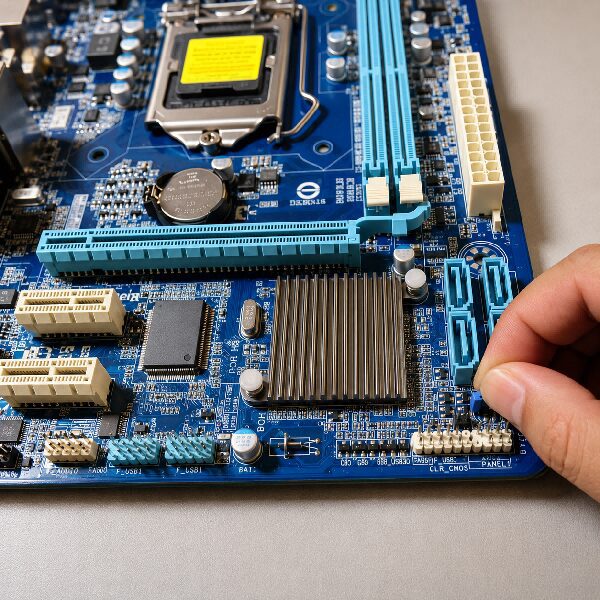
BIOS Maintenance for Bulk Device Projects
A BIOS reset is often a single repair step, but B2B projects need a repeatable maintenance standard. When dozens or hundreds of devices are involved, inconsistent firmware settings can create extra testing, support, and deployment work. These checks keep firmware settings consistent across the full device batch.
Standardize Settings by Device Model
Create a standard firmware profile for each device model instead of relying on memory. The profile should include boot order, security settings, storage mode, virtualization, port access, wake options, and any network boot requirement. If your team is comparing device platforms before ordering, how wholesale laptops are produced shows why firmware planning should be checked during sample validation and mass production review.
Keep Driver and Firmware Records
Keep BIOS versions, driver packages, operating system images, and approved firmware settings in one project file. This reduces confusion when a later unit behaves differently from the approved sample. It also makes repeat orders easier because the procurement team can ask the supplier to match the same setup when the same model and components are still available.
Test Samples Before Mass Orders
Do not wait until the full shipment arrives to check BIOS behavior. Test samples with the intended operating system, software image, network environment, accessories, and security policy. BIOS sample checks should be part of the wholesale computer order process, along with configuration review, sample approval, delivery terms, and support expectations before production.
Confirm OEM and ODM Support
If a project needs consistent setup across many devices, confirm whether the supplier can support configuration review, interface planning, packaging needs, sample confirmation, and batch production control. GetMi works with business customers on laptops, tablets, Mini PCs,all-in-one PCs , and portable monitors, with OEM and ODM discussions based on the actual project scope. For teams sourcing custom laptop computers, the BIOS setup should be discussed together with operating system, driver, port, and deployment requirements before the order is finalized.
FAQ
BIOS reset questions often come from one urgent issue, but the business impact depends on device setup. These answers focus on practical maintenance, not advanced repair.
Does resetting BIOS delete files?
No. Resetting BIOS usually restores firmware settings and does not delete files from the storage drive. Data risk can still appear if encryption, boot order, or storage mode changes affect access after restart.
Is BIOS reset the same as factory reset?
No. A BIOS reset changes firmware settings, while a factory reset usually restores the operating system or user environment. A computer may still keep its files and installed system after BIOS defaults are loaded.
Can I reset BIOS without opening the device?
Yes, in most normal maintenance cases. Use the BIOS or UEFI setup menu and choose the default settings option. Opening the device should be left to trained service staff or official repair procedures.
What happens after BIOS reset?
The device restarts with default firmware settings. You may need to restore boot order, Secure Boot, TPM, time, storage mode, virtualization, or port settings depending on the business setup. Always test the device before returning it to use.
Should businesses reset BIOS on all devices?
Not automatically. A BIOS reset is useful when there is a clear firmware related issue or when a controlled deployment process requires a standard baseline. For working devices, unnecessary resets can create extra testing work and access risk.
Conclusion
A BIOS reset can solve startup, hardware detection, and firmware setting issues, but it should be handled with records, backups, approval, and post-reset testing. For teams working with GetMi on school, office, reseller, or IT deployment projects, BIOS requirements can be discussed early with device configuration and sample checks.