

Do Laptops Have Ethernet Ports: What You Need to Know
Post Author:
GetMi Team
Date Posted:
May 21, 2026
Share This:
A stable and fast internet connection can transform your work, gaming, and streaming experience. While Wi-Fi is convenient, Ethernet often delivers superior speed, reliability, and security. Here, we’ll look at why wired connections still matter, how to connect your laptop with Ethernet, and what to do if your device lacks a port.
What Is an Ethernet Port?
An Ethernet port is a small, rectangular socket on a laptop or desktop that allows you to connect directly to a wired network using an Ethernet cable. Unlike wireless connections, Ethernet provides a dedicated, stable line for internet data, which can improve speed, reduce lag, and ensure security.
Purpose and Function of Ethernet Ports
Ethernet ports serve as the gateway for wired internet connectivity. They are commonly used in business environments, gaming setups, and locations where Wi-Fi may be unreliable. Connecting via Ethernet can prevent interruptions during video calls, online gaming, and large file transfers.
Ethernet vs Wi-Fi: Pros and Cons
- Pros of Ethernet: Faster speeds, lower latency, reliable and secure connections.
- Cons of Ethernet: Less convenient than Wi-Fi, requires a cable, limits mobility.
- Wi-Fi Pros: Wireless convenience, easy setup, accessible anywhere in range.
- Wi-Fi Cons: Can be slower or unstable in crowded networks, more susceptible to interference.
Overall, both Ethernet and Wi‑Fi have their strengths depending on your needs. If you prioritize speed, stability, and security, Ethernet is usually the better choice. On the other hand, Wi‑Fi offers flexibility and convenience, making it ideal for everyday use and mobile devices.
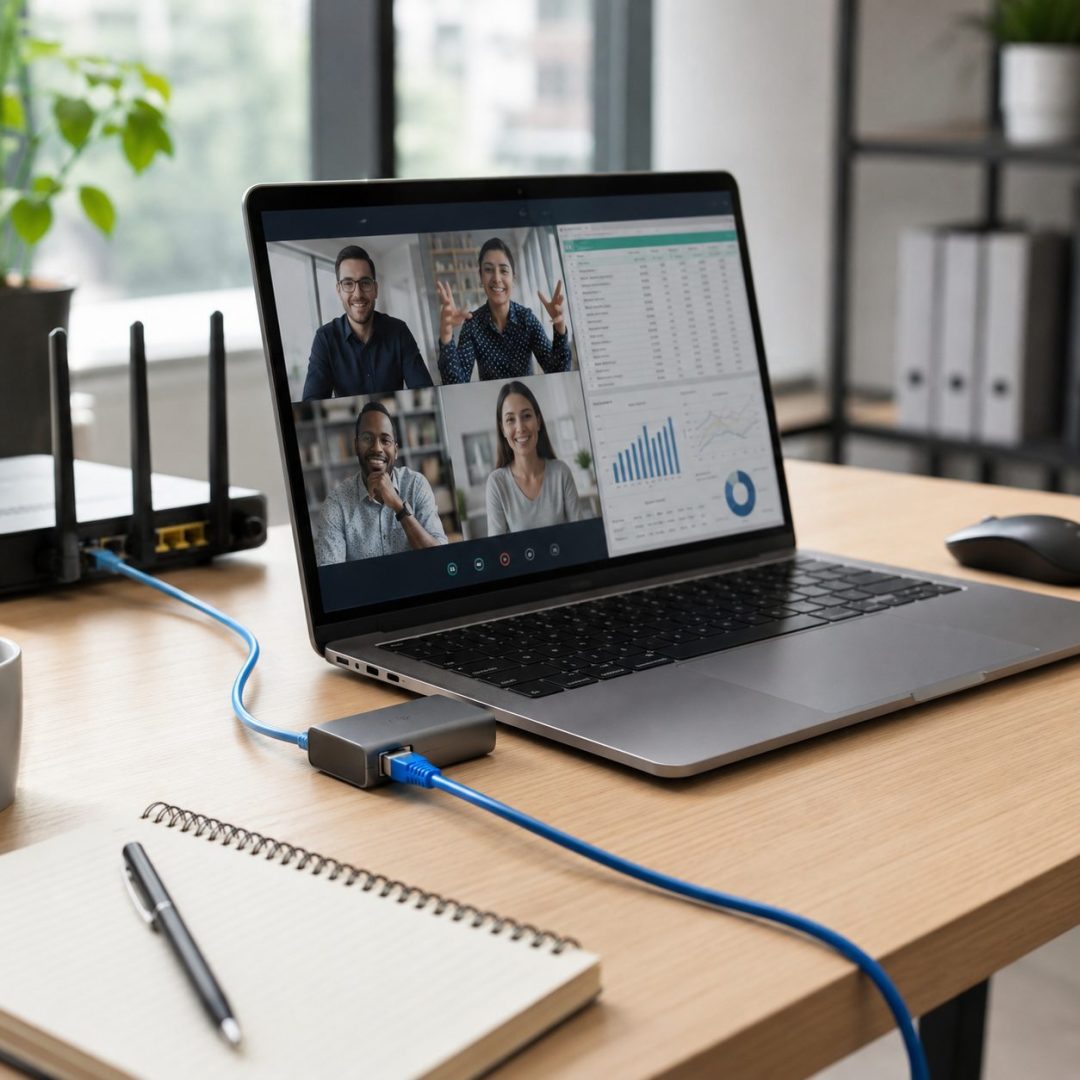
Which Types of Laptops Usually Have Ethernet Ports?
Not all laptops computers come with built-in Ethernet ports, as design priorities vary by model. Generally, laptops aimed at professionals or power users are more likely to include a wired connection option. Let’s take a closer look at the types of laptops that typically offer Ethernet.
Business Laptops and Workstation Laptops
Business and workstation laptops often include Ethernet ports to ensure stable and secure connections in office environments. A laptop computer for business is usually built for reliability, multitasking, and long work sessions, making it a practical choice for corporate users who need consistent performance.
Gaming Laptops and High-Performance Models
High-performance and gaming laptops frequently feature Ethernet ports to reduce latency and provide consistent speeds for online gaming and streaming. These devices prioritize performance and connectivity for demanding applications.
Older Laptops with Thicker Designs
Many older or bulkier laptops come with built-in Ethernet ports. Their larger chassis allows room for wired connections, which were once standard for all laptops before Wi-Fi became dominant.
Thin and Lightweight Laptops Without Ethernet
Slim ultrabooks and lightweight laptops often skip the Ethernet port to save space and reduce weight. While convenient for mobility, users of these devices may need adapters or docking solutions to access wired networks.
What to Do If Your Laptop Does Not Have an Ethernet Port
If your laptop lacks a built-in Ethernet port, there are several practical solutions to get a stable wired connection. Each method has its own advantages, and choosing the right one depends on your usage, portability needs, and budget.
Use a USB to Ethernet Adapter
A USB to Ethernet adapter is the simplest way to add a wired connection:
- Plug the adapter into an available USB-A or USB-C port on your laptop.
- Connect your Ethernet cable from the router or network switch into the adapter.
- Your laptop should automatically detect the wired network. If not, check your network settings or install any required drivers.
Best for: Travelers, students, or anyone who occasionally needs Ethernet without extra bulk.
Tip: Make sure to choose an adapter that supports gigabit speeds for fast and stable connections.
Choose a USB-C Hub with Ethernet
A USB-C hub expands the connectivity of thin laptops and often includes an Ethernet port along with additional USB ports, HDMI, or card readers:
- Connect the hub to your laptop’s USB-C port.
- Plug the Ethernet cable into the hub.
- Use the hub’s other ports for monitors, external drives, or peripherals.
Best for: Ultrabooks or laptops with limited ports that need a more versatile solution.
Tip: Look for hubs that support gigabit Ethernet and multiple ports if you want a compact all-in-one solution.
Use a Docking Station for Office Setup
Docking stations are ideal for a fixed workspace where you want full connectivity:
- Place your laptop on the docking station and connect it via USB-C or Thunderbolt.
- Plug your Ethernet cable into the dock’s port.
- Connect monitors, keyboards, mice, and other peripherals through the docking station.
Best for: Home offices, corporate environments, or users who need multiple displays and stable wired connections.
Tip: Choose a docking station compatible with your laptop and ensure it supports high-speed Ethernet if you rely on large file transfers or video conferencing.
Benefits of Using Ethernet on a Laptop
While Wi-Fi is convenient for everyday use, a wired Ethernet connection offers advantages that can make a noticeable difference in performance. From faster speeds to more reliable connectivity, using Ethernet ensures your laptop stays connected when it matters most.
Faster and More Stable Internet Connections
Ethernet provides a direct, wired link to your network, which often results in faster download and upload speeds. Unlike Wi-Fi, it’s less affected by distance or obstacles, giving you a stable connection for work or entertainment.
Reduced Latency for Gaming and Streaming
For gaming or live streaming, every millisecond counts. Ethernet minimizes lag and buffering, allowing smoother gameplay and uninterrupted video streams compared to wireless connections.
Reliable Connections in Crowded Wi-Fi Environments
In offices, cafés, or apartment buildings, Wi-Fi networks can become crowded and unstable. A wired connection avoids interference from other devices, keeping your internet performance consistent.
Security Advantages of Wired Connections
Wired networks are inherently more secure than wireless ones because they’re harder to intercept. Ethernet adds an extra layer of protection for sensitive data, making it a safer choice for business or personal use.
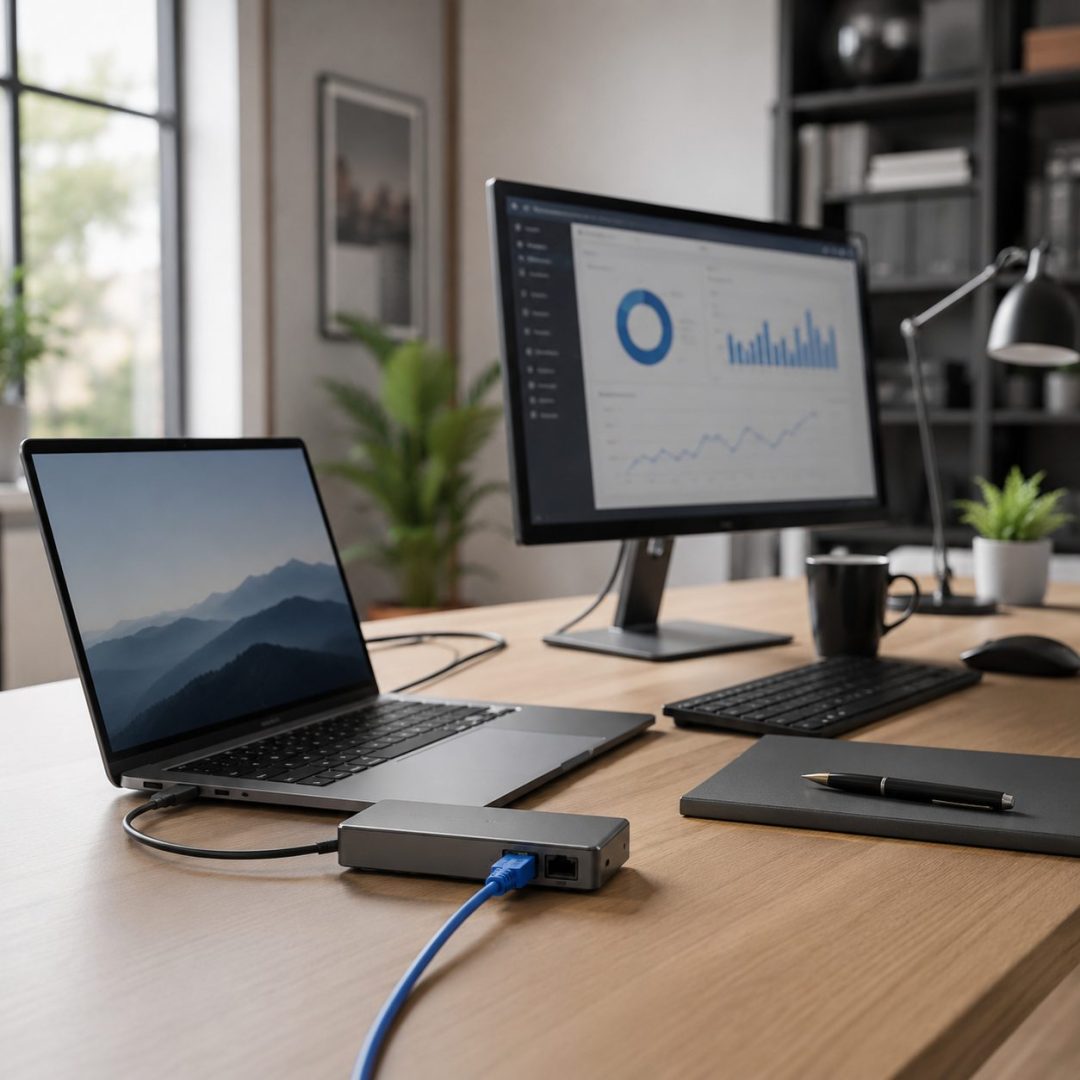
Need Ethernet for Business Use? GetMi Offers Custom Laptop Solutions
For business teams, education buyers, industrial projects, and other professional users, a laptop with reliable connectivity can make daily work easier. GetMi provides customizable laptop solutions with flexible hardware, software, and connectivity options for different deployment needs.
Custom Port Options for Business and Project Needs
Selected GetMi laptop models can include RJ45 Ethernet, while other port options may include USB, HDMI, Type-C, audio, microSD, Wi-Fi, and Bluetooth depending on the model. This gives buyers more flexibility when choosing devices for office networks, classrooms, meetings, or specialized workflows.
Flexible Configurations for Different Work Scenarios
GetMi laptops support configurable specifications such as CPU, RAM, SSD, system language, keyboard language, and charger standards on selected models. For buyers managing office, education, or creative work environments, these options make it easier to match devices with real usage needs.
OEM and ODM Laptop Customization Services
For enterprise, wholesale, and private-label projects, GetMi offers OEM and ODM services covering hardware configuration, software setup, logo customization, packaging, and other brand requirements. This helps businesses standardize laptop deployments while keeping the product aligned with their market or project needs.
FAQ
Can You Use Ethernet on Any Laptop?
Most laptops can use Ethernet, either through a built-in port or with an external adapter such as a USB to Ethernet or USB-C hub. Even ultra-thin laptops without a dedicated port can connect to wired networks using these solutions.
Can I Use Ethernet for Gaming on a Laptop Without a Port?
Yes. By using an adapter or USB-C hub with Ethernet, you can enjoy low-latency, high-speed connections even on laptops without built-in Ethernet ports, ensuring smooth online gaming or streaming.
How do I tell if my laptop has an Ethernet connection?
Check the sides or back of your laptop for a rectangular port that fits a standard Ethernet cable. You can also look in your network settings—if an “Ethernet” option appears, your laptop supports wired connections.
Does GetMi have an Ethernet port?
Many GetMi laptops come with built-in Ethernet ports or support adapters, offering flexible connectivity for business, gaming, or creative work.
Are Wi-Fi and Ethernet the same thing?
No. Wi-Fi is a wireless connection, convenient for mobility, but it can be less stable or slower in crowded environments. Ethernet provides a wired, more reliable connection with lower latency, making it ideal for professional work or gaming.
Conclusion
Choosing the right laptop connectivity depends on your needs for speed, stability, and reliability. While Wi-Fi is convenient, Ethernet provides faster, more stable, and secure connections—especially important for gaming, professional work, or crowded network environments.
If your laptop doesn’t have a built-in Ethernet port, adapters, USB-C hubs, and docking stations make it easy to stay connected. For those seeking a reliable, high-performance laptop with flexible wired and wireless options, GetMi laptop computers offer a range of configurations designed for business, creative work, and gaming.